
Monero GUI Wallet: A Comprehensive Guide to Secure and Private Cryptocurrency Management
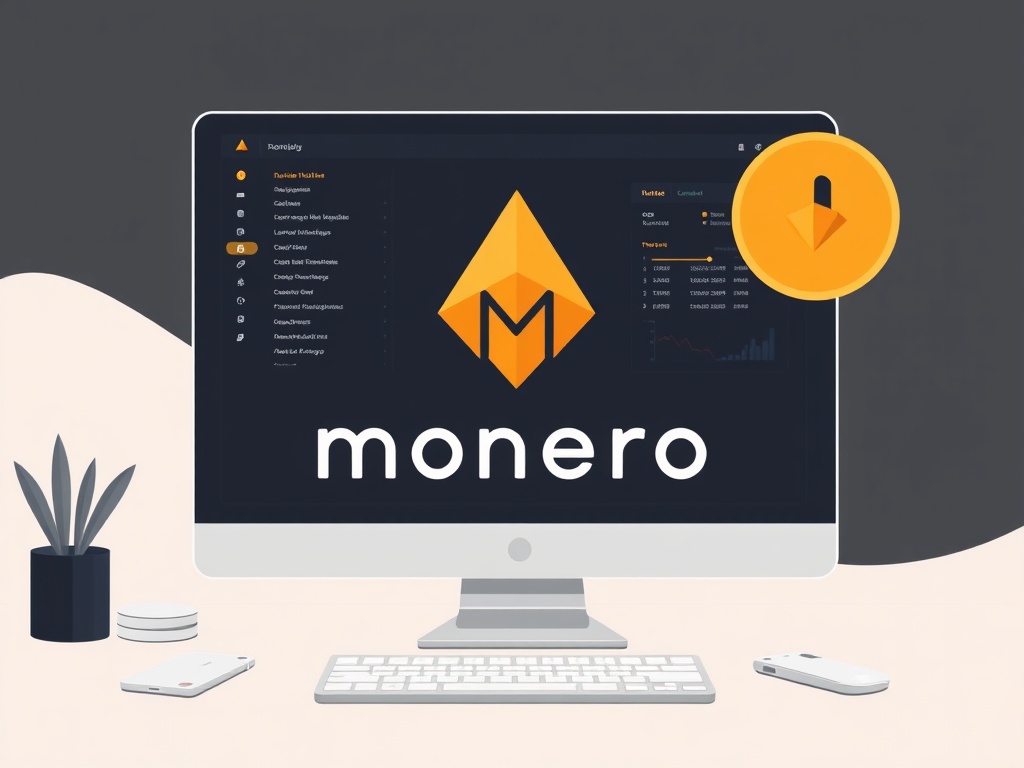
Monero GUI Wallet: A Comprehensive Guide to Secure and Private Cryptocurrency Management
The Monero GUI wallet stands as one of the most trusted and user-friendly tools for managing XMR, the native cryptocurrency of the Monero blockchain. Designed with privacy and security at its core, the Monero GUI wallet provides an intuitive interface for users to send, receive, and store Monero without compromising their financial anonymity. Unlike traditional wallets that rely on transparent ledgers, the Monero GUI wallet leverages advanced cryptographic techniques such as ring signatures, stealth addresses, and confidential transactions to ensure that every transaction remains untraceable and unlinkable.
In this comprehensive guide, we will explore the features, installation process, security measures, and best practices associated with the Monero GUI wallet. Whether you are a beginner looking to set up your first privacy-focused wallet or an experienced user seeking to optimize your Monero management, this article will provide the insights you need to make informed decisions.
Why Choose the Monero GUI Wallet for Private Transactions?
The Monero GUI wallet is more than just a tool for storing XMR—it is a gateway to financial privacy in an increasingly transparent digital world. Below are the key reasons why users worldwide prefer the Monero GUI wallet over other cryptocurrency wallets:
- Unmatched Privacy: Monero is the leading privacy coin, and the Monero GUI wallet is purpose-built to preserve anonymity. Transactions are obfuscated by default, making it nearly impossible for third parties to trace payments or link them to your identity.
- User-Friendly Interface: Unlike command-line wallets, the Monero GUI wallet offers a graphical interface that simplifies the process of sending and receiving XMR, even for non-technical users.
- Full Node Support: The wallet allows users to connect to their own Monero node, enhancing decentralization and reducing reliance on third-party servers. This feature is crucial for those who prioritize censorship resistance and network integrity.
- Cross-Platform Compatibility: Available for Windows, macOS, and Linux, the Monero GUI wallet ensures that users can manage their funds on their preferred operating system without sacrificing functionality.
- Open-Source Development: The codebase of the Monero GUI wallet is publicly auditable, fostering trust and transparency within the community. This open-source nature allows developers to contribute to its improvement and ensures that no hidden vulnerabilities exist.
For users who value financial sovereignty and privacy, the Monero GUI wallet is an indispensable tool. Its integration with the Monero network’s privacy protocols makes it the gold standard for secure cryptocurrency transactions.
Getting Started with the Monero GUI Wallet: Installation and Setup
Step 1: Downloading the Monero GUI Wallet
Before installing the Monero GUI wallet, ensure that you download the software from the official Monero website to avoid counterfeit or malicious versions. The official source is getmonero.org/downloads. Select the appropriate version for your operating system (Windows, macOS, or Linux) and download the installer or compressed file.
For added security, verify the Monero GUI wallet download using cryptographic signatures. Monero provides GPG-signed hashes for each release, which you can compare against the official signatures to confirm authenticity. Instructions for verification can be found on the Monero website.
Step 2: Installing the Wallet
The installation process varies slightly depending on your operating system:
- Windows: Run the downloaded .exe file and follow the on-screen instructions. The installer will guide you through the setup, including the option to choose between a full node or a remote node connection.
- macOS: Open the .dmg file and drag the Monero GUI application to your Applications folder. macOS may display a security warning; if so, navigate to System Preferences > Security & Privacy and allow the app to run.
- Linux: Extract the downloaded .tar.bz2 file and run the executable from the terminal or via your file manager. Ensure that you have the necessary dependencies installed, such as Qt5 and OpenSSL.
Step 3: Initial Configuration and Wallet Creation
Once installed, launch the Monero GUI wallet and follow these steps to set up your wallet:
- Choose Your Language: Select your preferred language from the dropdown menu.
- Select Network Type: You can choose between a full node (syncing the entire blockchain) or a remote node (connecting to a third-party node). For maximum privacy, a full node is recommended, though it requires more storage and bandwidth.
- Create a New Wallet: Click on "Create a new wallet" and enter a name for your wallet file. Choose a strong password and confirm it. Never share your password or wallet file with anyone.
- Backup Your Seed Phrase: The wallet will generate a 25-word mnemonic seed phrase. Write this down on paper and store it in a secure location. This seed is your only backup in case of device failure or loss. Never store it digitally or share it online.
- Sync the Blockchain: If you opted for a full node, the wallet will begin syncing with the Monero blockchain. This process may take several hours, depending on your internet speed and hardware.
Once the setup is complete, you will have full access to your Monero GUI wallet, ready to send and receive XMR with confidence.
Navigating the Monero GUI Wallet Interface
Overview of the Dashboard
The Monero GUI wallet interface is divided into several key sections, each designed to provide users with essential information and functionality:
- Balance Tab: Displays your current XMR balance, including unlocked and locked funds. Locked funds are typically those involved in pending transactions or mining rewards that have not yet matured.
- Send Tab: Allows you to initiate transactions by entering the recipient’s address, payment ID (if required), and amount. You can also set a priority fee to speed up transaction confirmation.
- Receive Tab: Generates a unique Monero address for receiving funds. You can create multiple addresses for different purposes, enhancing privacy by avoiding address reuse.
- Transactions Tab: Provides a detailed history of all incoming and outgoing transactions, including timestamps, amounts, and confirmation statuses.
- Address Book: Stores frequently used Monero addresses for quick and easy access. This feature is particularly useful for recurring payments.
- Settings Tab: Configures wallet preferences, such as language, display units, and node connection settings. You can also enable or disable features like transaction key scanning for enhanced privacy.
Understanding Transaction Fees and Priorities
The Monero GUI wallet allows users to customize transaction fees based on their urgency. Fees are calculated dynamically based on network congestion and transaction size. The wallet offers three priority levels:
- Slow: The lowest fee option, suitable for non-urgent transactions. Confirmation may take several hours.
- Normal: A balanced fee that ensures timely confirmation under most network conditions.
- Fast: The highest fee option, prioritizing quick confirmation even during high network activity.
It is important to note that Monero’s fee structure is designed to be affordable, with typical transaction fees ranging from 0.002 XMR to 0.01 XMR, depending on the chosen priority and network conditions.
Using Subaddresses for Enhanced Privacy
One of the standout features of the Monero GUI wallet is its support for subaddresses. Subaddresses are unique, one-time-use addresses derived from your primary wallet address. They provide several benefits:
- Improved Privacy: By using different subaddresses for different transactions, you prevent third parties from linking your payments to a single address.
- Better Organization: Subaddresses allow you to categorize transactions, such as separating personal payments from business transactions.
- Reduced Address Reuse: Monero’s privacy model discourages address reuse, and subaddresses make it easy to generate new addresses without compromising usability.
To create a subaddress in the Monero GUI wallet, navigate to the "Receive" tab and click on "Create new address." You can assign a label to each subaddress for better tracking.
Security Best Practices for the Monero GUI Wallet
Protecting Your Seed Phrase
The seed phrase is the most critical component of your Monero GUI wallet security. Losing your seed phrase means losing access to your funds permanently. Follow these best practices to safeguard your seed:
- Write It Down: Never store your seed phrase digitally. Write it on a piece of paper and keep it in a secure, offline location.
- Use a Metal Backup: Consider engraving your seed phrase on a metal plate to protect it from fire, water, or physical damage.
- Avoid Sharing: Never share your seed phrase with anyone, including friends, family, or support staff. Monero developers will never ask for your seed phrase.
- Test Your Backup: Periodically verify that your seed phrase is correct by restoring a test wallet with a small amount of XMR.
Securing Your Device
Your Monero GUI wallet is only as secure as the device it is installed on. Implement these security measures to protect your wallet from malware and unauthorized access:
- Use a Dedicated Device: If possible, use a separate device for cryptocurrency transactions to minimize exposure to malware.
- Keep Software Updated: Regularly update your operating system, antivirus software, and the Monero GUI wallet itself to patch security vulnerabilities.
- Enable Full Disk Encryption: Encrypt your device’s storage to prevent unauthorized access in case of theft or loss.
- Use a Hardware Wallet: For large amounts of XMR, consider using a hardware wallet in conjunction with the Monero GUI wallet for an extra layer of security.
Recognizing and Avoiding Scams
Scammers often target Monero users due to its privacy features. Be vigilant and follow these guidelines to avoid falling victim to common scams:
- Phishing Emails and Websites: Always verify the URL of the Monero GUI wallet download page and never enter your seed phrase on suspicious websites.
- Fake Support: Legitimate Monero support will never ask for your seed phrase or wallet password. If you encounter a support request via email or social media, verify its authenticity before responding.
- Malicious Software: Avoid downloading wallet software from third-party sources. Stick to the official Monero website to ensure you are using a legitimate version of the Monero GUI wallet.
- Social Engineering: Be cautious of unsolicited messages or offers that promise high returns or free XMR. If it sounds too good to be true, it likely is.
By adhering to these security best practices, you can significantly reduce the risk of losing your funds or falling victim to scams while using the Monero GUI wallet.
Advanced Features and Customization in the Monero GUI Wallet
Connecting to a Custom Node
While the Monero GUI wallet defaults to connecting to remote nodes, advanced users can configure it to connect to a custom node for increased privacy and control. This is particularly useful for users who run their own Monero full node. To connect to a custom node:
- Navigate to the "Settings" tab in the Monero GUI wallet.
- Select "Node" from the left-hand menu.
- Choose "Custom node" and enter the IP address or domain name of your node.
- Save the settings and restart the wallet to establish the connection.
Connecting to a custom node ensures that your transaction data is not exposed to third-party servers, enhancing your privacy.
Using the CLI Companion Tool
The Monero GUI wallet includes a command-line interface (CLI) companion tool that provides additional functionality for advanced users. The CLI tool allows you to:
- Generate detailed transaction reports.
- Manage multiple wallets from the command line.
- Automate wallet operations using scripts.
- Interact with the Monero network at a deeper level.
To access the CLI tool, navigate to the wallet’s installation directory and run the monero-wallet-cli executable. The CLI tool is particularly useful for users who prefer automation or need to integrate Monero transactions into their applications.
Configuring Transaction Key Scanning
The Monero GUI wallet supports transaction key scanning, a feature that allows you to view the details of incoming transactions without revealing your view key to the sender. This feature is useful for auditing transactions or verifying payments without compromising your privacy. To enable transaction key scanning:
- Go to the "Settings" tab.
- Select "Wallet" from the left-hand menu.
- Check the box for "Enable transaction key scanning."
- Save the settings and restart the wallet.
Once enabled, you can view the details of incoming transactions by entering the transaction key provided by the sender.
Exporting and Importing Wallet Files
The Monero GUI wallet allows you to export and import wallet files for backup or migration purposes. To export your wallet file:
- Go to the "Settings" tab.
- Select "Wallet" from the left-hand menu.
- Click on "Export wallet file" and choose a secure location to save the file.
To import a wallet file:
- Launch the Monero GUI wallet and select "Open a wallet from file."
- Browse to the location of your wallet file and select it.
- Enter your wallet password to unlock the file.
Always ensure that your wallet file is stored securely and never shared with unauthorized parties.
Troubleshooting Common Issues with the Monero GUI Wallet
Wallet Not Syncing Properly
If your Monero GUI wallet is not syncing properly, try the following solutions:
- Check Your Internet Connection: Ensure that your device is connected to the internet and that there are no network restrictions.
- Restart the Wallet: Close and reopen the wallet to reset the connection.
- Switch Nodes: If you are using a remote node, try switching to a different node to see if the issue persists.
- Update the Wallet: Ensure that you are using the latest version of the Monero GUI wallet.
- Check Storage Space: If syncing a full node, ensure that you have enough free disk space on your device.
Transaction Stuck or Unconfirmed
If a transaction remains unconfirmed for an extended period, consider the following steps:
- Increase the Fee: If you set a low fee, try increasing it to prioritize the transaction.
- Check Network Status: Visit a Monero blockchain explorer to verify the network’s current congestion level.
- Rescan the Blockchain: In the wallet settings, you can rescan the blockchain to detect any missed transactions.
- Contact the Recipient: If the issue persists, contact the recipient to confirm that they have received the transaction.
Wallet File Corruption
In rare cases, your wallet file may become corrupted. To recover your funds:
- Use your seed phrase to restore the wallet on a new
 Emily ParkerCrypto Investment Advisor
The Monero GUI Wallet: A Secure and Private Gateway for Crypto Investors
As a certified financial analyst with over a decade of experience guiding investors through the complexities of digital assets, I’ve seen firsthand how privacy-focused cryptocurrencies like Monero (XMR) stand apart in an increasingly transparent financial ecosystem. The Monero GUI wallet is not just another wallet—it’s a robust tool designed for users who prioritize financial sovereignty and anonymity. Unlike many mainstream wallets that rely on transparent ledgers, the Monero GUI wallet leverages cutting-edge cryptographic techniques, such as ring signatures and stealth addresses, to ensure that transactions remain untraceable and unlinkable. For investors concerned about privacy breaches or regulatory scrutiny, this wallet offers a compelling solution. Its user-friendly interface belies the sophisticated technology under the hood, making it accessible to both novice and experienced users alike.
From a practical investment perspective, the Monero GUI wallet is particularly valuable for those holding XMR as part of a diversified portfolio. The wallet’s integration with the Monero network ensures seamless synchronization and real-time transaction updates, which is critical for active traders. Additionally, its open-source nature allows for continuous community-driven improvements, reducing the risk of hidden vulnerabilities. I recommend that investors pair the wallet with hardware storage solutions, such as a Ledger device, to further enhance security. While Monero’s privacy features may raise eyebrows in some jurisdictions, its long-term viability as a censorship-resistant asset makes it a strategic holding for forward-thinking portfolios. Always conduct thorough due diligence, but for privacy-conscious investors, the Monero GUI wallet is a cornerstone tool.